Wednesday, April 4, 2012

Uninstalling AdFree from Android smartphones

AdFree is a service that blocks ads from being displayed.

First of all I personally think it's wrong to use such a service, because ads are monetizing method that doesn't require the users to pay. Blocking ads decrease the profitability of this method, and hypothetically if everyone would use ad blocking service, we will have to start to pay money to visit sites.

AdFree uses the "hosts" file to redirect advertisement sites addresses back to your device, and this way blocking the communication to the advertisement site server.
AdFree have a problem when uninstalling it - it doesn't undo the changes it did to the "hosts" file.
Because of this even after uninstalling the application advertisement sites are still blocked.

In order to undo these changes you have to edit the "hosts" file.
To do this you need a rooted Android smartphone (you probably have one because it's required in order to use AdFree), and a text editor program that can edit the file.
I recommend using ES File Explorer(Adfly link)

Setting ES File Explorer
First you need to setup ES File Explorer to be able to access root file and edit them.
To do so you need to:
1. Open ES File Explorer.
2. Press the menu button and select "Settings".
3. In the "Root settings" section check "Root Explorer" and "Mount File System".

Editing the hosts file
After you done setting ES File Explorer, you can edit the "hosts" file and remove AdFree's blocking.
1. Navigate to the hosts file and open it. The hosts file located at:
/system/etc/hosts
(Press the "up button to go to the root folder - "/")
2. Delete everything.
3. Add the line "127.0.0.1 localhost"
Optional: Add anything else you want. (if you know what you are doing)

Last step is to restart the smartphone and AdFree blockage is removed!

Tuesday, April 3, 2012

Amulets and Armor Character Editor v0.3

Version 0.3 is here and it let you the ability to edit all of your character's stats.

Requirements:
Microsoft .NET Framework 4.0 (Adfly link)

your saved files found in:
...\Amulets and Armor\S0000000\

Download (Adfly link)

Change log:
v0.3:
Edit strength, speed, magic, accuracy, stealth and constitution.
Edit health, max health, mana and max mana.
Edit level and experience.
Edit character class.
Added max input value limit to avoid bad input.
Fixed few bugs.

v0.2:
Fix for a critical bug

v0.1:
Edit name
Edit password
Edit money on you character
Edit money in your bank

Saturday, March 17, 2012

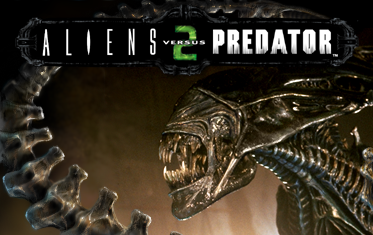
Aliens Vs. Predator 2 - How To Play Multiplayer Using "Project Savior"

After Sierra shut down master servers for some games, including AVP2, player could no longer browse for servers on the internet.
Then a mod called "Project Savior" was released, which offers an alternative master server. Using this mod, players can once again browse for servers on the internet.

Here I'll explain where to get it and how to install it properly to avoid a bug with the auto updater.

Please be kind and use the Adfly links as a gratitude.


Step 1
Update AVP 2 to the latest version, which is "1.0.9.6" .
You can download the update from here:
http://aliensvspredator2.filefront.com/file/AvP2_Update_1096;8730 (Adfly link)

Step 2
Download the Project Savior mod from here (Master Server patch):
http://www.moddb.com/mods/avp2-project-savior/downloads (Adfly link)

Step 3
Install Project Savior. If you are using Windows 7 or Vista, remember to run it as administrator.
You will have to uncheck the "Easy update" option when installing the mod. Otherwise the game won't let you play unless you update the game, and the updater won't work and will give you this error:

"I/O Error 123."
We already updated the game in step 1, so don't worry about updating.

Step 4
Enter the game, and select "MULTIPLAYER INTERNET". The game will ask you to update the game, press OK. There will be no update and you will be able to host or find internet games!

That's it!
Now you can play Aliens Vs. Predator 2 multiplayer over the internet!

Friday, March 9, 2012

Battlefield Heroes: Failed to download config file

After several months that I didn't play Battlefield Heroes, I tried to play it again.
But a message box popped saying:

I tried to look up for a solution but didn't find anything that works.
I tried to uninstall the game but it didn't help.

Eventually I deleted the Battlefield Heroes extension from my browser and it solved the problem!

Using Chrome as my browser, I opened the menu -> Tools -> Extensions
and deleted the Battlefield Heroes extension, and restarted the browser.

And now when I hit the "PLAY NOW!" button I don't get this error anymore!

I hope this will help you too!