If you have seen Algodoo, a physics simulator based on Phun, you would probably want to play it.
And if you want to play it you probably looked at the official site.
And if you looked at the official site you have seen that the full version cost money, and that there is a demo.
And if you have seen that there is a demo you would prabably download it.
And if you downloaded it you probably noticed there is a time limit.
And if you have seen the time limit you probably thought "there is any way to play Algodoo without a time limit and without paying money?".
And if so, yes there is!
I've made a little simple hack, that reset the demo's time limit.
All you have to do is to run it every time you want to reset the time limit!
Download
Enjoy!
Sunday, February 28, 2010
Saturday, November 7, 2009
GZDoom Network Game v1.3
Here is a batch file I've made to make GZDoom network gaming easier and simple task.
This batch file automaticly setup and run a network game or let you join one.
Unlike the previous versions of this batch file, this one support WADS that replace levels.

Download:
http://www.mediafire.com/download.php?zhnzjgynwlz
This batch file automaticly setup and run a network game or let you join one.
Unlike the previous versions of this batch file, this one support WADS that replace levels.

Download:
http://www.mediafire.com/download.php?zhnzjgynwlz
Tuesday, October 13, 2009
How to record with DOSBox
Here I'll show you how to record with DOSBox.
How to start and stop recording:
To start recording press Ctrl+Alt+F5, to stop recording press Ctrl+Alt+F5 again.
It's very easy and simple!
Installing the codec:
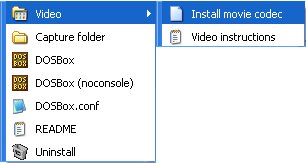
DOSBox using zMotion codec. to install it open the start menu>All Programs>DOSBox>Video>Install movie codec
Here is a pic from dosbox's wiki site:

Another option is to use a media player that's able to play the records.
For more info you can look here:
http://www.dosbox.com/wiki/Recording_Video
Enjoy!
How to start and stop recording:
To start recording press Ctrl+Alt+F5, to stop recording press Ctrl+Alt+F5 again.
It's very easy and simple!
Installing the codec:
DOSBox using zMotion codec. to install it open the start menu>All Programs>DOSBox>Video>Install movie codec
Here is a pic from dosbox's wiki site:

Another option is to use a media player that's able to play the records.
For more info you can look here:
http://www.dosbox.com/wiki/Recording_Video
Enjoy!
How to use DOSBox
DOSBox is a program that let you run old games on modern computers, its a very useful tool but you have to know how to use it. In this guide I'll teacher you how to navigate in DOSBox.
Lets say I want to play One Must Fall 2097. Without DOSBox the game will run slowly.
The .EXE file to run the game located in D:\OMF\OMF.EXE
STEP 1:
First we have to mount drive D:. If we won't mount it DOSBox won't be able to find it.
The command line to mount D: is "mount d d:\".
you can replace "d" with any other drive letter.
STEP 2:
Now when drive D: is mounted, we need to navigate to "D:\OMF\". To do so, first of all we go to drive D: by entering the command "D:".
Next we type "cd omf". The "cd" command used to open folders.
STEP 3:
Now we are inside "D:\OMF\", next thing to do is to open OMF.EXE .
To do so simply write "omf" or "omf.exe".
That's all!
here is a pic how it looks like:

Have a good time!
Lets say I want to play One Must Fall 2097. Without DOSBox the game will run slowly.
The .EXE file to run the game located in D:\OMF\OMF.EXE
STEP 1:
First we have to mount drive D:. If we won't mount it DOSBox won't be able to find it.
The command line to mount D: is "mount d d:\".
you can replace "d" with any other drive letter.
STEP 2:
Now when drive D: is mounted, we need to navigate to "D:\OMF\". To do so, first of all we go to drive D: by entering the command "D:".
Next we type "cd omf". The "cd" command used to open folders.
STEP 3:
Now we are inside "D:\OMF\", next thing to do is to open OMF.EXE .
To do so simply write "omf" or "omf.exe".
That's all!
here is a pic how it looks like:

Have a good time!
Sunday, October 11, 2009
MAME32 emulator setup guide
Well, after spending over a hour with my friend how to make the MAME32 emulator run Metal Slug 3.
So, I'll make a step by step guide that will show you how to make games such as Metal Slug 3 work on the MAME32 emulator:
Step 1:
First of all you have to download and unzip the MAME emulator, I got MAME32 0.90u1 version but I believe you can use newer version.
MAME download:
http://mamedev.org/release.html
Step 2:
Now you need to download a file called "geoneo.zip", inside your MAME32 emulator folder you got a folder called "roms", place the "geoneo.zip" file inside the "roms" folder and DON'T unzip it!
geo-neo download:
http://server1.rom-world.com/dl/f230bfeb9f988fc24003f29537189b3b/4ad2405a/games/MAME/neogeo.zip
or just google it.
Step 3:
Now you need a game, you simply download a game and place it in the "roms" folder, the game have to be zipped, DON'T unzip it!
you have to make sure the file's name is currect, when you enter the emulator, find your game, right click and choose properties.
At the general tab you will have the game's title and the file's name between "" under it, make sure the zip file got the same name or else the emulator won't find it!
This is pretty much all, now you should be able to run any game on the MAME32 emulator!
Have fun!
So, I'll make a step by step guide that will show you how to make games such as Metal Slug 3 work on the MAME32 emulator:
Step 1:
First of all you have to download and unzip the MAME emulator, I got MAME32 0.90u1 version but I believe you can use newer version.
MAME download:
http://mamedev.org/release.html
Step 2:
Now you need to download a file called "geoneo.zip", inside your MAME32 emulator folder you got a folder called "roms", place the "geoneo.zip" file inside the "roms" folder and DON'T unzip it!
geo-neo download:
http://server1.rom-world.com/dl/f230bfeb9f988fc24003f29537189b3b/4ad2405a/games/MAME/neogeo.zip
or just google it.
Step 3:
Now you need a game, you simply download a game and place it in the "roms" folder, the game have to be zipped, DON'T unzip it!
you have to make sure the file's name is currect, when you enter the emulator, find your game, right click and choose properties.
At the general tab you will have the game's title and the file's name between "" under it, make sure the zip file got the same name or else the emulator won't find it!
This is pretty much all, now you should be able to run any game on the MAME32 emulator!
Have fun!
Subscribe to:
Posts (Atom)